

ECLOUD / 02
Understand the screen and environments
Recognise where you are, what you can view and which actions belong to an administrator.
Arrows point to real controls. Enlarge any detail. Names and options may vary by version and account permissions.
Before exploring the console
Sign in with your authorised account. The left menu organises services; the central area shows the selected section. The theme icon changes appearance. Profile identifies your account. Available actions depend on your permissions.
- 01AppCloud
- 02VPS
- 03Drive
- 04Account
AppCloud · Applications
Choose an instance in the list and select Ver on the application. Nueva instancia adds capacity; Nueva aplicación opens the software deployment wizard; Catálogo de aplicaciones offers prepared installations. Check resources and costs before creating.
- Instance
- demo-apps
- Application
- inventario-demo
- Ver
- Opens details; does not restart or delete.
Aplicaciones
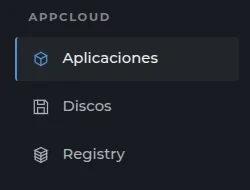
01Select the instance first, then the application. Discos and Registry are separate technical areas.
AppCloud · Disks
A persistent disk stores files that must survive redeployment. Enter a name in nombre-del-disco and use Crear disco once the application and mount path have been defined. Storage uses your plan’s capacity. Ampliar almacenamiento shows capacity options; Solicitar requests a paid expansion. A disk is not a backup.
- Disk name
- documents-demo
- Create disk
- Creates persistent storage.
- Request
- Review capacity and price before confirming.
Crear disco
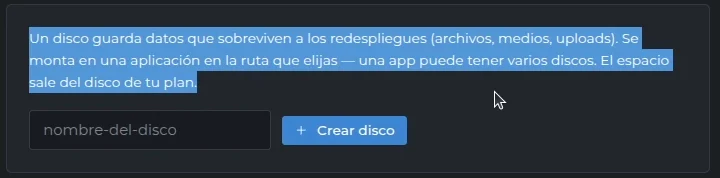
01Define a name and confirm the application, capacity and mount path. Creating a disk does not increase contracted capacity.
AppCloud · Registry
Registry stores container images: packages containing the application and what it needs to run. Credenciales shows server, project, username and password; copy icons copy the corresponding value. Sube y despliega shows commands to sign in, tag and push an image. Then use Nueva aplicación → Desde tu Registry. A developer must prepare a compatible image; never share credentials.
- Registry
- registry.engitech.com.co
- Project
- empresa-demo
- Image
- inventario:v1
VPS · Servers
Lists the account’s virtual servers. Nuevo servidor / Crear mi primer servidor starts a request; it does not install an application. Define the operating system, resources and access before continuing. An empty list means no servers are visible in the account, not that the service is down.
- Action
- Create server
Crear mi primer servidor
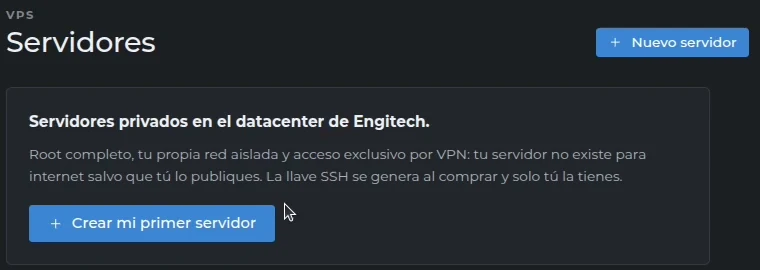
01This is a technical request. You do not need to select this button when only inspecting the console.
VPS · My network
Red privada shows the assigned subnet and status. Accesos VPN lists devices, connection, IP and public key. Enter a recognisable name and select Crear acceso to generate an individual profile. Cómo conectar opens help. The trash icon revokes that access and may disconnect the device. Conectar sede links office networks through their router; it requires administrator coordination and non-conflicting subnets.
- Device
- laptop-demo
- Profile
- One .conf file per device.
- Check
- Open the private service after connecting.
Crear acceso

01Generates a VPN profile for an authorised device. Identify it by name and do not share one profile between users.
Drive · My clouds
Shows storage and collaboration instances. Crear instancia starts a file-cloud request. Read availability notices: if the console indicates a pilot or pending request, creation does not mean immediate activation. To work with documents, use your organisation’s Nextcloud address and manuals.
- Service
- Nextcloud / Office
- Use
- Files, synchronisation and collaboration
Account · Company
Datos identifies the organisation. Plan shows CPU, RAM, disk and container usage. Equipo lists people and roles. Invitar adds an authorised user; check the email and role before sending. Container usage is not the application’s user count.
- Company
- Empresa Demo
- User
- admin@example.com
- Role
- As authorised
Account · Billing
Review services, monthly price, current-period amount, previous months and purchase history. A prorated amount covers only part of a period. Exportar PDF downloads the visible statement; Exportar histórico (PDF) gathers history. An informational statement does not prove payment: check its status and contact your adviser if online payment is unavailable.
- Period
- Selected month
- Export
Account · Profile
Gestionar cuenta y contraseña opens identity management: password, two-step verification and sessions. Datos de contacto y facturación lets you review identity document, phone, address and invoice recipient. Choose personal or company billing, verify the email and select Guardar. Editing details does not pay an invoice.
- Contact
- admin@example.com
- Invoice to
- Empresa Demo
- Action
- Save
Account · API and CLI
The API lets programs interact with eCloud; the CLI provides terminal access. In Perfil, Tokens de API lets you restrict application, environment, validity and permissions. A token acts with your access: treat it as a password. API & CLI contains documentation and downloads per system and architecture. Start with read permissions and Testing; do not enable delete, restore or production changes unless needed.
- Environment
- Testing
- Permissions
- Only those required
- Token
- Secret; never publish in a screenshot.
Linux · x86-64
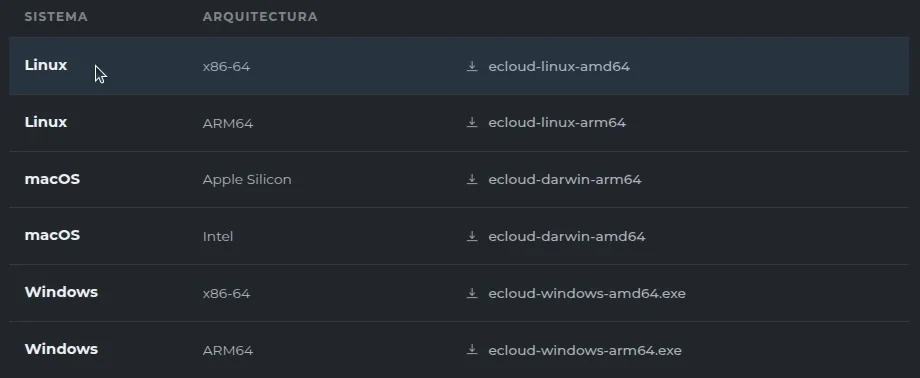
01Check system and architecture. Linux x86-64 and Linux ARM64 are different downloads.
Instance, application and environment
- InstanceResources that host systems.
- ApplicationThe system your company uses.
- EnvironmentTesting or Production, if available.
- Find the environment cards and read their names. Do not rely on colour alone.
- Select Ver entorno (View environment) to inspect another environment.
- Check the Entorno seleccionado (Selected environment) heading before opening a tab.
Production may serve real users. Testing is for checking changes, but do not assume it is empty, isolated or free of important information.
Summary and Metrics: observe before changing
- Open Resumen (Summary) to identify the environment’s general information.
- Open Métricas (Metrics) and check the displayed period before comparing values.
- Review CPU, RAM and instance usage. CPU is processing capacity; RAM is working memory; disk is storage space.
- Point to a chart value if the interface allows it. Read the legend and units.
A single spike does not prove a fault. A gap may mean missing measurements, not zero usage. Whole-instance values include other services; do not confuse them with one application’s values.
If performance is slow: record the time, period, environment and symptom for support. Do not restart merely to lower a chart.
Métricas

01Check the time range and units before interpreting usage. Viewing metrics does not modify resources.
Backups and Activity: review the evidence
- Open Backups and read the displayed policy: coverage, frequency and retention. Do not assume it matches another customer’s policy.
- Review history, checking the backup’s date, environment and status. Pending does not mean completed.
- Before restoring, ask the responsible administrator to verify which data would be replaced and the correct recovery point.
- Open Actividad (Activity) to review recent operations and states. Compare event times with the issue being investigated.
Destino de restauración

01Replacing data can overwrite destination information. Confirm the correct backup and authorisation before restoring.
Specialist tabs
- Dominios y acceso — Domains and access
- Connects the application to its web address. A domain is a name used to reach a service. Viewing is different from changing: edits may affect access.
- Versiones y módulos — Versions and modules
- In the Odoo example, these options concern software and its components. Availability depends on the application. Building, publishing or changing versions requires technical validation.
- Logs
- Technical records help investigate errors. They may contain sensitive data; review them before sharing and do not publish them.
- Consola — Console
- Allows technical work through commands. Do not paste unfamiliar commands or enable temporary access without authorisation.
- Configuración — Settings
- May include settings and a danger zone. Recognise its location without confirming actions during this tour.
Reiniciar (Restart) and Detener (Stop) affect the service. They are not navigation buttons.
Your safe tour, from start to finish
- Identify instance, application and environment; check whether it is Testing or Production.
- View Summary and Metrics without changing values.
- Locate Backups and Activity without restoring or running operations.
- Return to Applications and check that you recognise the same instance.
You have understood if: you can explain where you are, distinguish viewing from operating and identify what to leave to an administrator.
Missing tabs may depend on the application, version or permissions. If the console does not load, check connectivity and access; send support the time and error message, without credentials or complete logs.
Inside an environment: what each tab tells you
Resumen
Check environment name, status and access. Open the application URL to verify response; Online does not replace that check.
Métricas
Select the period and read units and legends. CPU is processing; RAM is working memory; disk is storage. Record the time and duration of anomalies.
Backups
Check backup scope, date and status. Creating a backup saves a recovery point; restoring may replace data. Check the destination and newer data before restoration.
Actividad
Match operation, time and status. A pending operation has not finished. Keep the identifier for support; avoid repeating an action still running.
Dominios y acceso
Check the URL and access type. Public HTTPS needs a valid address and certificate; private access needs authorised connectivity such as VPN. Changing domains can affect links and integrations.
Versiones y módulos
Check environment and version. Build and test prepares software in Testing; Publish to production applies the validated version to the live service. Confirm backup and authorisation first.
Logs
Read logs around the failure and note the first relevant error. Do not publish complete logs: they may contain personal data or secrets.
Consola
This is a terminal for the indicated application or service. Verify the destination before running commands. Do not paste commands you do not understand or practise in production.
Configuración
Review settings and the danger zone. Stop interrupts service; Restart starts it again; Delete may remove data or resources. Read the confirmation and scope before acting.
Help and references
Available options depend on the service, version and your account permissions.
Request support ↗