

ECLOUD / 03
Create AppCloud instances and access VPS Linux
Manage resources, applications and access from the eCloud console.
Arrows point to real controls. Enlarge any detail. Names and options may vary by version and account permissions.
Prepare your request
An instance provides resources to host systems. AppCloud hosts and manages applications through its console. A VPS Linux is a virtual server whose operating system requires technical administration.
- Use an account allowed to request resources and obtain approval from your company’s responsible person.
- Define the system you need to host and who will administer it.
- Confirm capacity and budget before submitting a request that may incur charges.
CPU is processing capacity; RAM is working memory; disk is storage. If you do not know your application’s requirements, ask support before choosing a plan.
Open New AppCloud instance
- Sign in to the official console using your authorised account.
- In the sidebar, open AppCloud → Aplicaciones (Applications).
- In the instances area, select + Nueva instancia (New instance).
- Check the heading reads Nueva instancia AppCloud. Do not confuse it with Nueva aplicación (New application), which adds an application to existing resources.
Expected result: the plan selector appears. Options and capacities may change; check the current console.
+ Nueva instancia
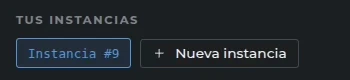
01Do not confuse this with Nueva aplicación, which uses an existing instance.
Choose a plan and submit one request
- Compare resources, capacity and current prices. Screenshots are not a quotation.
- Select the approved plan and check which card is highlighted.
- In ¿Para qué la necesitas? (opcional) (What do you need it for? Optional), enter a clear purpose if desired, such as “Inventory system testing”. Do not enter passwords.
- Check the plan and purpose again.
- Select Solicitar instancia (Request instance) once. Review the list or confirmation notice before trying again.
Expected result: the console records the request or reports a pending condition. Requesting an instance does not mean your application is already installed.
AppCloud M

01The blue border marks your selection. Compare CPU, RAM and storage. Capture prices are historical; confirm current prices in the console.
Solicitar instancia
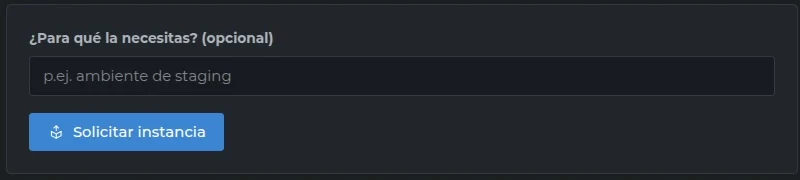
01Describe the purpose if needed and submit once. Check the list and status before resubmitting.
Payment and instance provisioning
- 01Plan selected
- 02Payment confirmed
- 03Provisioning
- 04Instance available
- Check payment status in your account. Pending or rejected payment does not activate resources.
- After payment is confirmed, follow provisioning status in Applications.
- Provisioning can take a few minutes, up to 20 minutes according to the timeframe indicated by ENGITECH. If it takes longer, contact support without duplicating the request.
- Check that the instance is available before installing an application.
Linux VPS: prepare your server
Open VPS → Servidores. This section lists your account’s servers. Use Nuevo servidor / Crear mi primer servidor to enter the available workflow and review its conditions before confirming.
- Before requesting
- Operating system, CPU, RAM and disk.
- Access
- Authorised account, network and access method agreed.
- Responsibility
- The customer manages server updates, applications and security.
Nuevo servidor
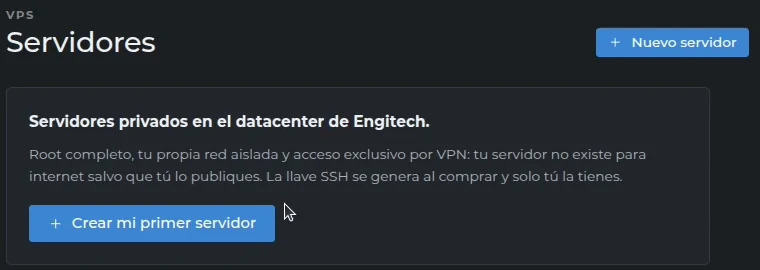
01This opens the wizard. With no servers, Crear mi primer servidor is also shown. Check conditions and resources before confirming.
Your own applications belong here too
AppCloud is not limited to the catalogue. You can deploy compatible custom applications from a repository or Registry image, with suitable resources, dependencies, ports and storage. Not every application works without adaptation; check its requirements before purchasing.
Help and references
Available options depend on the service, version and your account permissions.
Request support ↗