

ECLOUD / 01
Get to know eCloud
Find the right tool to send email, share documents or use your company’s applications.
Arrows point to real controls. Enlarge any detail. Names and options may vary by version and account permissions.
ECLOUD / VISUAL MAP
Your work, connected with eCloud
Choose a task to see where to start. This is a conceptual map, not a console screenshot.
Send an email
Share a file
Use an application
AppCloud / VPS
Open your application URL. If you manage the service, use the eCloud console with your account permissions.
Open guide →What can eCloud help you do?
Imagine you need to send a report, review a document with your team or check your company’s orders. eCloud brings together ENGITECH cloud services that can support this work.
The cloud means using services over the Internet. Programs and files may be hosted on servers: computers that keep those tools available. You do not need to know how to install a server to use your email.
eCloud is a portfolio of services, not a single application. Your email, files and business system may have different access addresses. Your company decides which services to subscribe to and who can use them.
Start with what you need to do
Send a report
Professional Email / Zimbra. Messages, contacts and calendar. Learn to use your email →
Share documents
Nextcloud Workspace. Files and collaboration, depending on enabled features. Learn to use your files →
Use a business system
AppCloud / VPS Linux. They host applications. If you only check orders, open your application’s address; you do not need to manage its server.
Host a Windows system
VPS Windows. A virtual server for compatible programs. Your administrator defines access and required licences.
Protect information
Advanced Backups. Backups according to the subscribed policy. Check coverage and recovery with the person responsible.
From your device to your tool
Conceptual map: this is not a screenshot of the console.
- 01 · YouOpen your browser or approved client.
- 02 · Official accessInternet + your service address + your account.
- 03 · Your toolEmail, documents or your business application.
A browser is a program for visiting websites, such as Chrome or Firefox. An application A console is a screen for viewing or managing a service; available options depend on your permissions.
Try a small task
- Ask your company for the official address and your account. Check the address before entering your password.
- Open the approved email service. Find Inbox and the compose action.
- Send a test message to a colleague who has agreed to receive it, without sensitive data.
- Check Sent and confirm receipt with that person. A draft is not a sent message.
If your task is to share a document, open Nextcloud, find an authorised folder and review a test file. Before sharing, check the recipient and permissions.
Using an application is different from managing its server
End user
Sends messages, reads documents or records information in the application.
Application administrator
Manages users and application features within their responsibilities.
Infrastructure administrator
Manages resources, instances and environments with authorisation.
An instance provides resources to host systems. An environment identifies a workspace, such as Testing or Production. Production may be where the business is actively working.
Aplicaciones
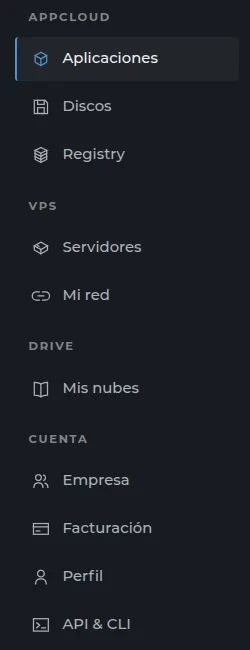
Check that you know where to start
- I can choose email, files or an application for my task.
- I recognise the official address and know who can grant access.
- I can distinguish using a tool from managing its infrastructure.
If you cannot sign in, check your connection and address. If a feature is missing, ask about your permissions. Contact support with the service, time and error message; hide passwords, codes and client data in screenshots.
Self-management: you decide, the console guides you
eCloud simplifies management with forms, status indicators and visible actions. Authorised customers can manage applications, resources and environments without repeating every task in a terminal. Required knowledge depends on the action: managing a Linux VPS operating system requires knowledge of updates, access and security.
- 01Choose the resource
- 02Read the scope
- 03Apply the authorised change
- 04Check the result
Technological independence, with an example
It means having the freedom to choose, adapt and move your solutions, reducing dependence on a single provider. Linux and open-source software still use third-party components; independence does not make those components disappear.
- You keep
- Authorised code, exportable data and documentation.
- You choose
- Compatible applications and suitable resources.
- You can move
- Prepare exports, dependencies and restoration before changing infrastructure.
Data sovereignty: control you can verify
You can decide who accesses information, their permissions and how to export and recover it within the contracted service. Data and backup locations must be confirmed per service; do not assume they are all in the reader’s country.
- 01Set access per person
- 02Confirm location and backups
- 03Export an authorised copy
- 04Test recovery
Help and references
Available options depend on the service, version and your account permissions.
Request support ↗